@setsphere — Visual Effects
RLVa-specific visual effect system applied to the final step of world rendering.
Source
This page is based on the RLVa RFC setsphere from the Catznip Wiki. Images courtesy of Catznip Wiki under CC BY 4.0.
Overview
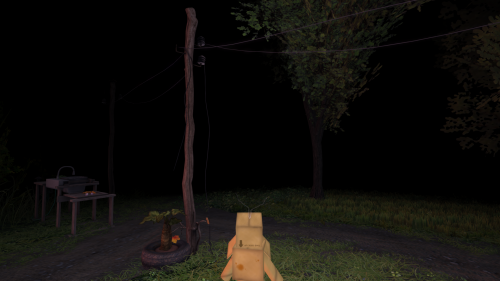
@setsphere is a visual effect that acts on pixels falling within a sphere of influence around the avatar. Unlike @camdrawmin/max, @setsphere applies effects to the final rendered pixels, creating smooth gradients and transitions.
Think of it as standing in darkness with a lightbulb hat that evenly brightens the area around you. The spot where you're standing is at normal brightness, but at 5m away everything is only 50% as bright, and at 10m (and beyond) you see total darkness.
Note
@setsphere does not actually emit light — it only affects how pixels are rendered.
First-Person View
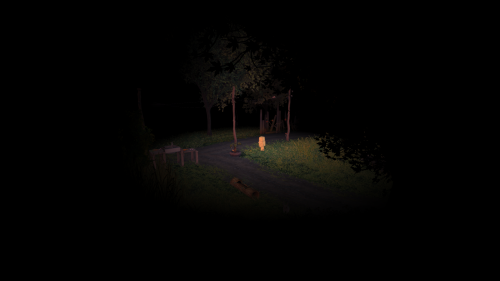
Third-Person View
Even though the camera is in the "all black" zone, you can still see the avatar in its "brightened" area and objects outside the visible area can be made out as silhouettes.
Compatibility Note
While originally intended, it's not possible to build a compatibility layer for @camdrawmin/max. The drop-off at the inner distance is virtually instantaneous with @camdraw, while @setsphere provides smooth gradients.
Comparison: @camdrawmin/max (RLV)
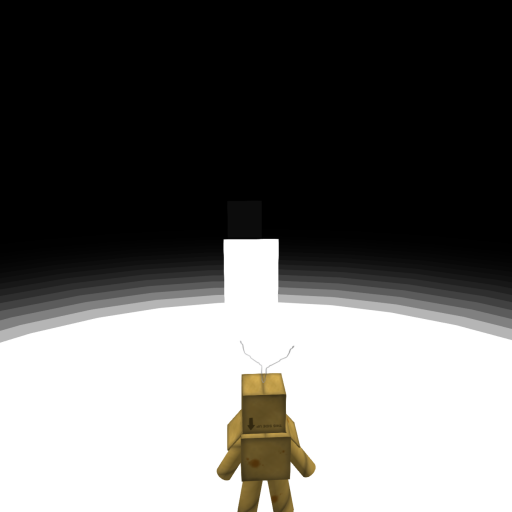
@camdrawmin:5=n,camdrawmax:25=n,camdrawalphamin:0=n,camdrawalphamax:1=n
Only the first prim (within unaffected radius) is visible. The drop-off past 5m is so tight that not even the first prim at 10m is visible.
Comparison: @setsphere (RLVa)
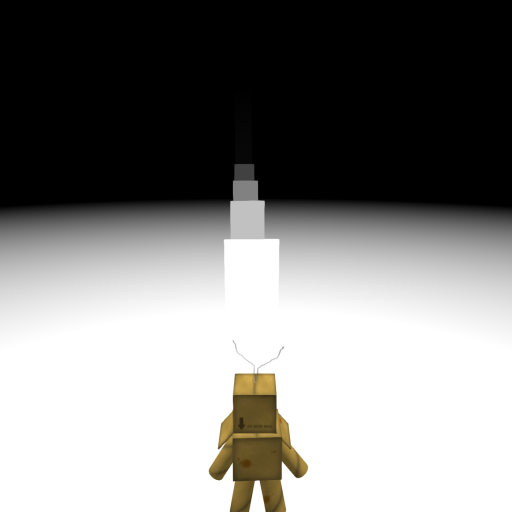
@setsphere=n,setsphere_distmin:5=force,setsphere_distmax:25=force,setsphere_valuemin:0=force,setsphere_valuemax:1=force
You can see the inner prim at 5m, as well as the next 3 prims at 10m, 15m and 20m with decreasing brightness, and finally the one at 25m which is completely black.
Implied Restrictions
@setsphere is a visual effect only and does not impose any restriction. To limit camera distance, use the appropriate @setcam_XXX restrictions.
The following restrictions are added or modified:
| Restriction | Description |
|---|---|
@viewtransparent=n |
Prevents highlighting transparent textures |
@viewwireframe=n |
Prevents switching to wireframe rendering (considered a cheat when @setsphere is active) |
@setsphere — Main Command
@setsphere is the main restriction for the sphere effect. Issue a series of force commands to change the appearance and behavior.
Modifier commands follow the form: @setsphere_<modifier>:<param>=force
These apply only to the object that issued them. Multiple objects' spheres are cumulative (e.g., for blending, colors mix when alpha < 1.0).
To unset a modifier value, issue the force command without a value: @setsphere_param=force
Modifier Table
| Modifier | Input Range | Default | Description |
|---|---|---|---|
setsphere_mode |
0 - 4 | 0 | Type of effect (see below) |
setsphere_origin |
0 - 1 | 0 | 0 = centered on avatar, 1 = centered on camera |
setsphere_distmin |
0 - ∞ | 0 | Distance where effect starts (at valuemin strength) |
setsphere_distmax |
0 - ∞ | 0 | Distance where effect ends (at valuemax strength). If not specified or < distmin, set to distmin |
setsphere_distextend |
0 - 3 | 1 | How areas outside min/max are affected (see below) |
setsphere_param |
vector4 | 0/0/0/0 | Configures base appearance (mode-specific) |
setsphere_valuemin |
0.0 - 1.0 | 1.0 | Effect strength at distmin |
setsphere_valuemax |
0.0 - 1.0 | 1.0 | Effect strength at distmax |
setsphere_tween |
seconds | 0.0 | When non-zero, modifier changes take X seconds to transition. Set back to 0 for instant changes |
Mode Values
| Value | Mode |
|---|---|
| 0 | Blend |
| 1 | Blur (Fixed) |
| 2 | Blur (2) |
| 3 | Chromatic Aberration |
| 4 | Pixelate |
@setsphere_distextend
The distextend modifier specifies how areas outside the min/max range are affected.
| Value | Description |
|---|---|
| 0 | Effect only applied within min and max distance. Pixels outside render as normal. |
| 1 | Effect extends outward — pixels beyond max distance have strength valuemax (default) |
| 2 | Effect extends inward — pixels closer than min distance have strength valuemin |
| 3 | Effect extends both inward and outward |
Visual Explanation
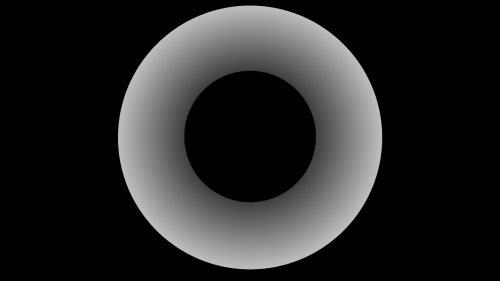
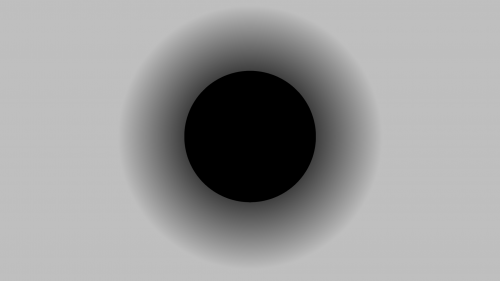
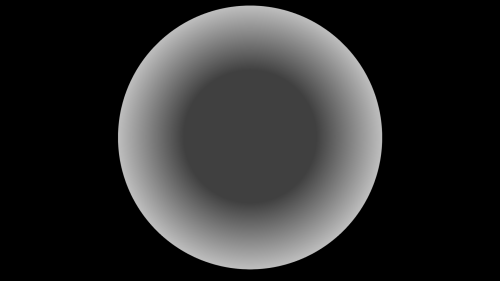
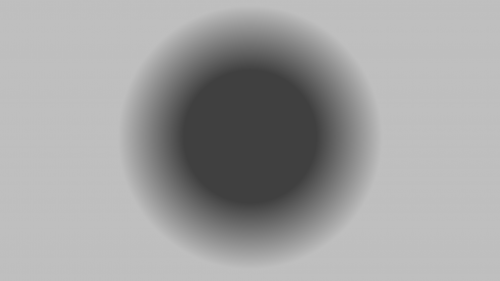
In these images: pure black = unaffected; any shade of gray = effect strength between 0 and 1.
distextend = 0: Effect only applies for distmin < distance < distmax
distextend = 1: Effect extends outward past distmax
distextend = 2: Effect extends inward before distmin
distextend = 3: Effect extends both inward and outward
Note
Not all modes support all 4 distextend options — see individual mode documentation.
Mode: Blend
Blend mode mixes each pixel with the sphere's color according to a linearly increasing/decreasing mix value.
| Modifier | Value | Description |
|---|---|---|
setsphere_mode |
0 | Switch to blend mode |
setsphere_param |
<red>/<green>/<blue>/0 |
RGB color (0-1), 4th param unused |
setsphere_distmin |
distance | Start distance |
setsphere_distmax |
distance | End distance |
setsphere_distextend |
0-3 | See above |
setsphere_valuemax |
0.0-1.0 | Strength at distmax |
setsphere_valuemin |
0.0-1.0 | Strength at distmin |
Example
Open the RLV console and copy/paste restrictions one by one. If you close the console midway, restart from step 1.
Step 1: Clear all modifiers and switch to blend mode with 2.5m exclusion sphere, everything else pure black:
@clear,setsphere=n,setsphere_distmin:2.5=force
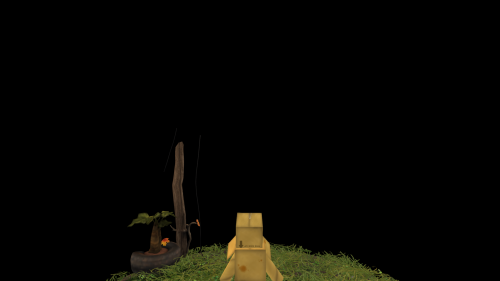
Exclusion sphere of 2.5m with everything else blacked out
Step 2: Set outer radius to 20m, start with 0.0 alpha at 0m:
@setsphere_distmax:20=force,setsphere_valuemin:0=force
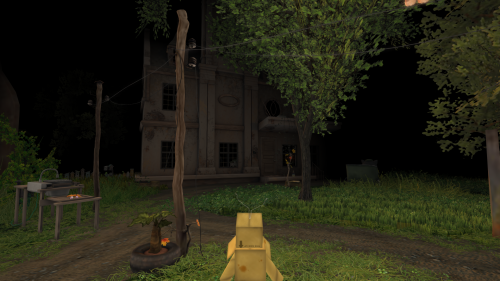
Blend sphere from 2.5m to 20m with gradually increasing strength
Step 3: Cap strength at 95% and blend with dark gray:
@setsphere_valuemax:0.95=force,setsphere_param:0.35/0.35/0.35/0=force
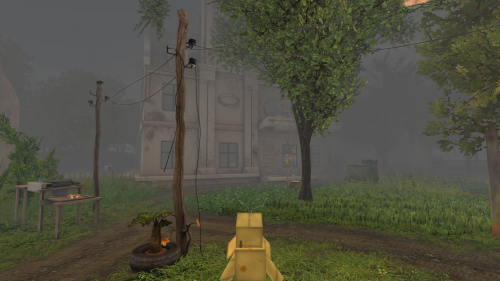
Maximum strength capped at 95% and blended with gray
Step 4: Increase outer radius to 50m for better visual:
@setsphere_distmax:50=force
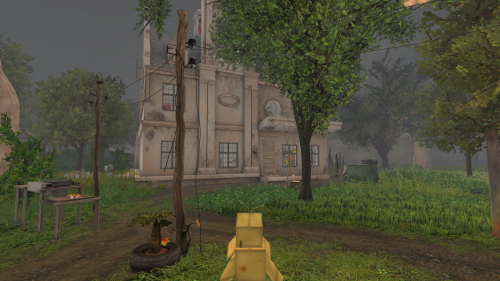
Same as step 3 but with increased distmax
Mode: Blur (Fixed)
Fixed 13-kernel blur effect.
| Modifier | Value | Description |
|---|---|---|
setsphere_mode |
1 | Switch to fixed blur mode |
setsphere_param |
— | Unused |
setsphere_distmin |
distance | Start distance |
setsphere_distmax |
distance | End distance |
setsphere_distextend |
0-3 | See above |
setsphere_valuemin |
0.0-4.0 | Blur strength at distmin |
setsphere_valuemax |
0.0-4.0 | Blur strength at distmax |
Notes
- Strength value determines the pixel sampling distance (e.g., value of 1 samples 3 pixels in each direction)
- Going beyond 4.0 creates square patterns — use variable blur for more extreme effects
Example
Step 1: Clear all modifiers and switch to fixed blur:
@clear,setsphere=n,setsphere_mode:1=force
Step 2: Set blur radius to 2 pixels:
@setsphere_valuemax:2=force
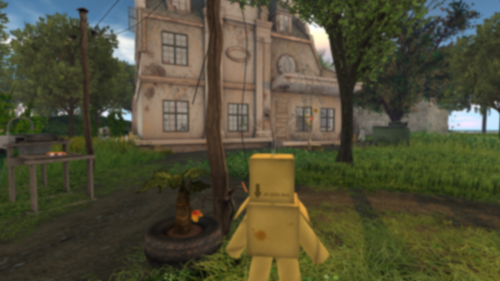
Everything is blurred
Step 3: Set 2m exclusion sphere:
@setsphere_distmin:2=force
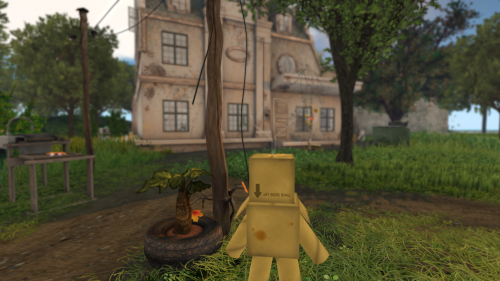
Objects within 2m are not blurred
Step 4: Increase outer radius to 20m:
@setsphere_distmax:20=force
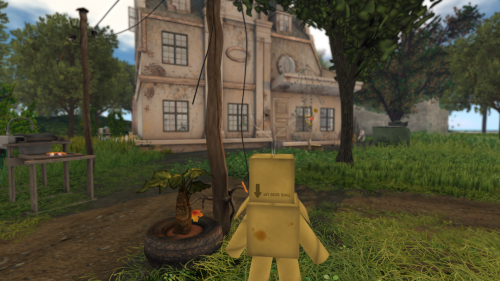
Objects between 2m and 20m slowly start to blur
Step 5: Increase outer radius to 200m:
@setsphere_distmax:200=force
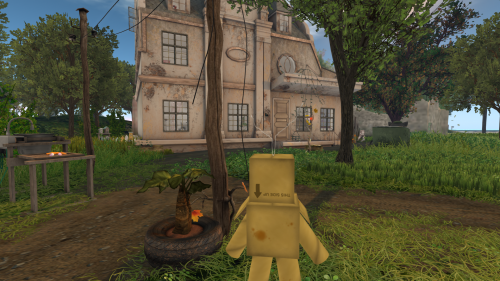
Same as step 4 but outer distance greatly increased
Mode: Blur (2)
Variable kernel Gaussian blur with configurable kernel size.
| Modifier | Value | Description |
|---|---|---|
setsphere_mode |
2 | Switch to variable blur mode |
setsphere_param |
<kernel>/0/0/0 |
Kernel size for Gaussian blur |
setsphere_distmin |
distance | Start distance |
setsphere_distmax |
distance | End distance |
setsphere_distextend |
0-3 | See above |
setsphere_valuemin |
float | Sigma at distmin |
setsphere_valuemax |
float | Sigma at distmax |
Notes
- Kernel size determines how many neighboring pixels are sampled
- Higher kernel size = more blurred result (dependent on sigma value)
- Avoid large kernel values — may be clamped in future versions
Example
Step 1: Clear all modifiers and switch to variable blur:
@clear,setsphere=n,setsphere_mode:2=force
Step 2: Set kernel size to 15 and sigma to 5:
@setsphere_param:15/0/0/0=force,setsphere_valuemax:5=force
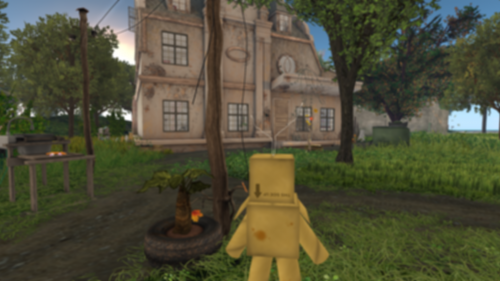
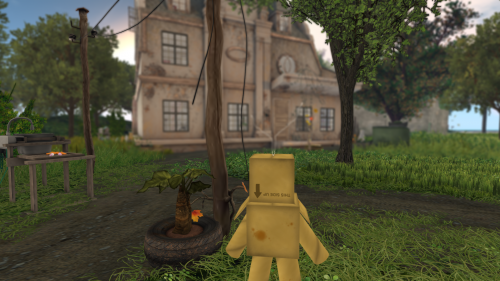
Step 3: Set 2m exclusion:
@setsphere_distmin:2=force
Mode: Chromatic Aberration
Separates color channels with configurable offsets.
| Modifier | Value | Description |
|---|---|---|
setsphere_mode |
3 | Switch to chromatic aberration mode |
setsphere_param |
<h_red>/<v_red>/<h_blue>/<v_blue> |
Horizontal/vertical shifts for red and blue channels |
setsphere_distmin |
distance | Start distance |
setsphere_distmax |
distance | End distance |
setsphere_distextend |
0-3 | See above |
setsphere_valuemin |
0.0-1.0 | Strength at distmin |
setsphere_valuemax |
0.0-1.0 | Strength at distmax |
Notes
- If both valuemin/valuemax and distmin/distmax are different, offsets gradually increase/decrease based on distance
Example
Step 1: Clear all modifiers and switch to CA mode:
@clear,setsphere=n,setsphere_mode:3=force
Step 2: Shift red left by 8px, blue right by 8px:
@setsphere_param:8/0/-8/0=force
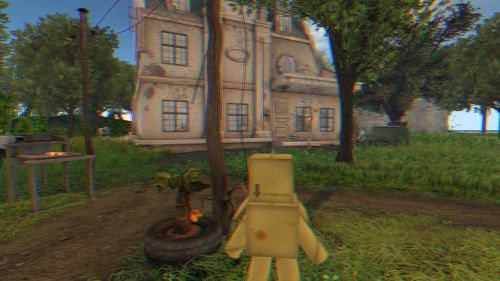
Red shifted 8 left, blue shifted 8 right
Step 3: Increase shifts, blend back at 50%, animate over 5 seconds:
@setsphere_tween:5=force,setsphere_param:0/-25/0/25=force,setsphere_valuemax:0.5=force,setsphere_tween=force
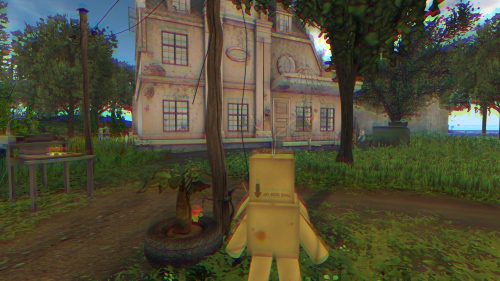
Using valuemin/valuemax blends with original color
Step 4: Set 10m exclusion:
@setsphere_distmin:10=force
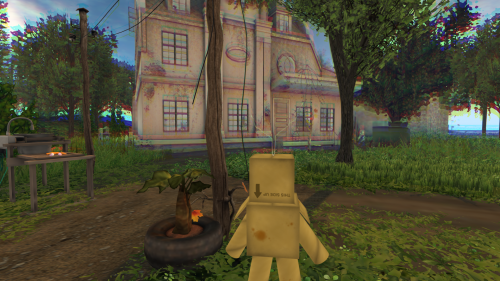
Inner sphere radius set to 10m
Mode: Pixelate
Pixelates the view with configurable block size.
| Modifier | Value | Description |
|---|---|---|
setsphere_mode |
4 | Switch to pixelate mode |
setsphere_param |
<width>/<height>/0/0 |
Block size in pixels (last 2 unused) |
setsphere_distmin |
distance | Start distance |
setsphere_distmax |
distance | End distance |
setsphere_distextend |
0 or 1 | 1 = extend past max, 0 = end at max |
setsphere_valuemin |
— | Unused |
setsphere_valuemax |
— | Unused |
Notes
- Don't use
@setsphere_distextend:1=forcewith min/max distance in this mode — just set distmin - Pixel size may be resolution-independent in future versions
Example
Step 1: Clear all modifiers and switch to pixelate:
@clear,setsphere=n,setsphere_mode:4=force
Step 2: Set block size to 10x10:
@setsphere_param:10/10/0/0=force
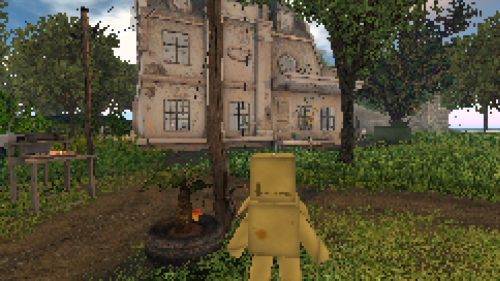
Block size 10x10
Step 3: Set 10m exclusion:
@setsphere_distmin:10=force
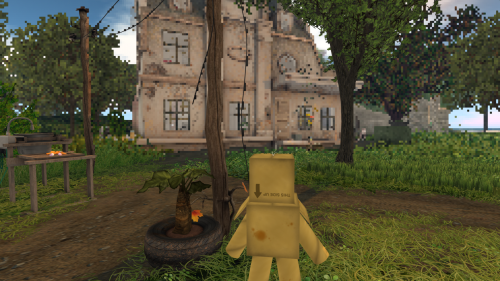
Inner sphere radius 10m
Step 4: Tween to 25x25 over 15 seconds:
@setsphere_tween:15=force,setsphere_param:25/25/0/0=force,setsphere_tween=force
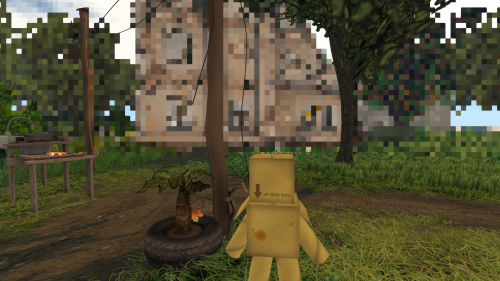
Block size tweened to 25x25
Tweening
When setsphere_tween is set to a non-zero value, modifier changes transition smoothly over the specified duration.
Affected parameters: distmax, distmin, param, valuemax, valuemin
Example:
// Enable 5-second transitions
@setsphere_tween:5=force

// Now all changes take 5 seconds
@setsphere_param:0/-25/0/25=force
@setsphere_valuemax:0.5=force

// Disable tweening for instant changes
@setsphere_tween=force
Common Patterns
Restrict Vision to 2m Around Avatar
@clear,setsphere=n,setsphere_distmax:2=force,setsphere_valuemax:1=force
Gradual Fog (Black to 20m)
@clear,setsphere=n,setsphere_distmin:5=force,setsphere_distmax:20=force,setsphere_valuemin:0=force,setsphere_valuemax:1=force
Full-Screen Blur
@clear,setsphere=n,setsphere_mode:1=force,setsphere_valuemax:3=force
Vision Restriction + Camera Lock
@setsphere=n,setsphere_distmax:5=force,setsphere_valuemax:1=force,@camunlock=n